When phone calls are an important source of leads, tracking how many calls your Google Ads campaigns generate is only the first step. The more important question is which of those calls actually represent valuable leads.
Google Ads uses conversion data to understand which ad interactions lead to meaningful business outcomes. If every phone call is treated as a conversion, however, Google Ads cannot distinguish between a qualified prospect, an existing customer, a short call, and an irrelevant or spam call.
A better approach is to connect your call tracking data to Google Ads, define what makes a call a conversion, and send those qualified conversions back to Google Ads.
With Nimbata, the process has three main steps:
- Connect Nimbata to Google Ads and make sure calls can be attributed to your ads
- Classify which calls should count as conversions
- Send those conversions, and optionally their values, back to Google Ads
You can also create your Google Ads conversion action directly from Nimbata, without switching between platforms.
The result is a feedback loop that looks like this:
Google Ads click → website visit → phone call → call qualification → conversion → Google Ads
This gives Google Ads a much better signal about what a successful customer interaction looks like.
What is a Google Ads call conversion?
A conversion in Google Ads represents an action that matters to your business. Depending on the business, that might be a purchase, form submission, booked appointment, or phone call.
A call conversion is a conversion associated with a phone interaction.
But there is an important distinction between tracking a call and counting a call as a conversion.
Call tracking answers:
Where did this call come from?
Call conversion tracking answers:
Was this call valuable enough to count as a conversion?
For example, imagine a Google Ads campaign generates 50 calls.
Those 50 calls could include:
- 15 existing customers
- 10 missed or very short calls
- 5 spam calls
- 12 new prospects
- 8 highly qualified sales opportunities
If all 50 calls are imported into Google Ads as conversions, Google Ads sees 50 conversions. It does not necessarily understand that the 8 sales opportunities are more valuable than the other 42 calls.
With a properly configured call conversion strategy, you can tell Nimbata to identify the calls that meet your criteria and send those calls to Google Ads as conversions.
This distinction is at the heart of effective call conversion tracking.
Before you start: how call conversion tracking works
You don’t need to build your entire call tracking infrastructure as part of this guide. Nimbata needs to be able to identify calls generated by your Google Ads traffic, so your Google Ads traffic should already be configured for call attribution.
At a high level, Nimbata uses your website tracking setup and Dynamic Number Insertion (DNI) to connect an incoming call with the website session that generated it. This can associate the call with relevant advertising information, such as the Google Ads campaign, ad group, keyword, and landing page.
From there, the process is straightforward:
1. Capture the call and its attribution data
2. Determine whether the call qualifies as a conversion
3. Send the conversion to Google Ads
The rest of this guide focuses on the second and third parts.
Step 1: Set up Nimbata and connect it to Google Ads
The first step is to connect your call tracking data with Google Ads.
Nimbata captures the information associated with incoming calls, including the advertising source that generated the call. This allows you to connect a phone lead back to the Google Ads campaign, ad group, keyword, and other available attribution data.
1.1 Connect your Google Ads account
In Nimbata, go to:
Integrations → Google Ads
Click Connect and sign in with the Google account associated with your Google Ads account.
Once you authorize the connection, your Google Ads account will be available in Nimbata.
See Nimbata’s Google Ads integration guide
1.2 Set up your tracking numbers
Using call tracking numbers helps you capture and attribute call data from your Google Ads campaigns. These numbers appear on your website and replace your regular business number for visitors coming from the traffic you want to track. When someone calls, Nimbata captures the call and connects it with the relevant marketing data.
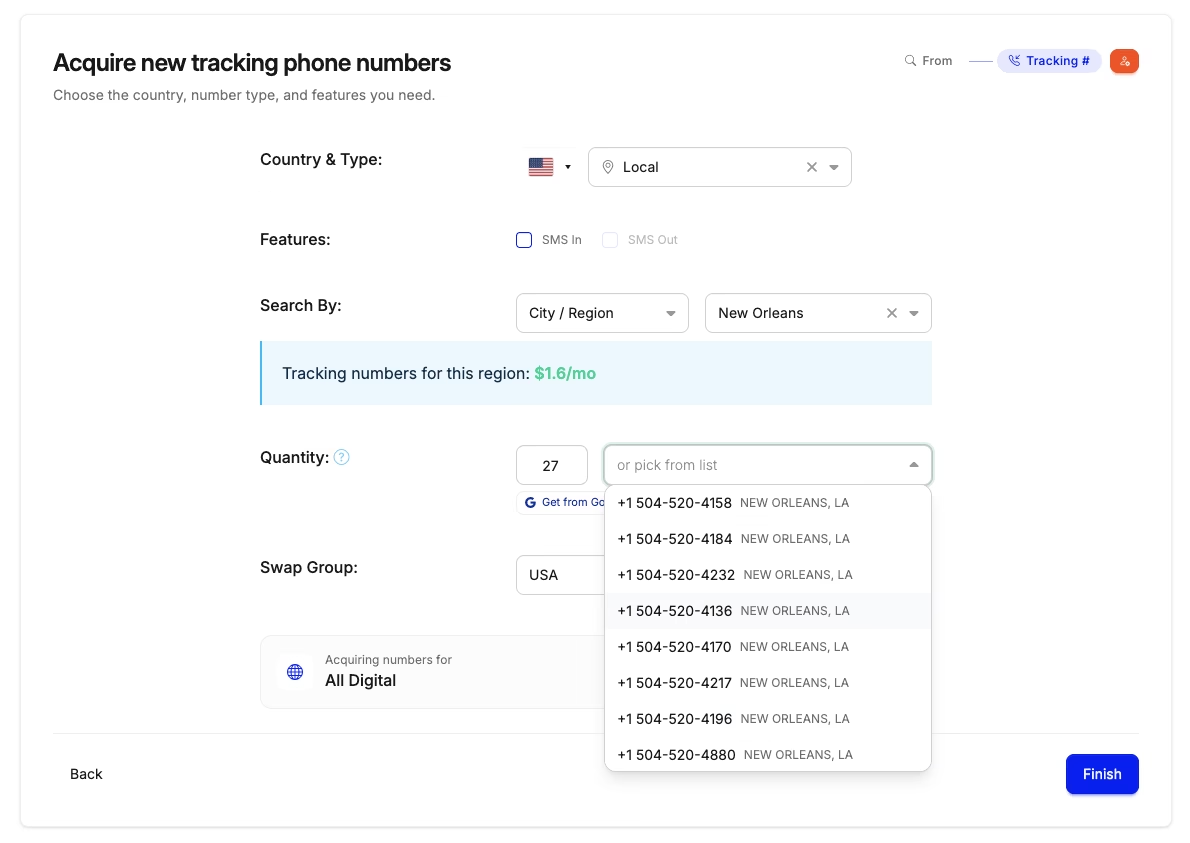
At this stage, you do not need to build an elaborate call tracking setup. The important thing is that the number used for the relevant Google Ads traffic is tracked by Nimbata and routes calls to your business number.
If you’re already using Nimbata for call tracking, you can move directly to the conversion setup.
Common question: How many tracking number you will need?
How many tracking numbers you need depends on how much insight you want from your Google Ads calls:
- Track the number of calls generated by Google Ads: 1 Nimbata tracking number is enough.
- Track deep, session-level insights: Use a tracking number pool. This lets you connect each call to the website session that generated it, including data such as the Google Ads campaign, ad group, keyword, landing page, and other session-level attribution details. The size of the pool depends on your website traffic.
1.3 Create a Google Ads conversion action
Traditionally, you would create the conversion action in Google Ads first and then return to your call tracking platform to configure when that conversion should fire.
Nimbata now lets you create the Google Ads conversion action directly from the Nimbata interface.
This means you don’t need to leave Nimbata, open Google Ads, create the conversion, and then come back to Nimbata.
After connecting your Google Ads account:
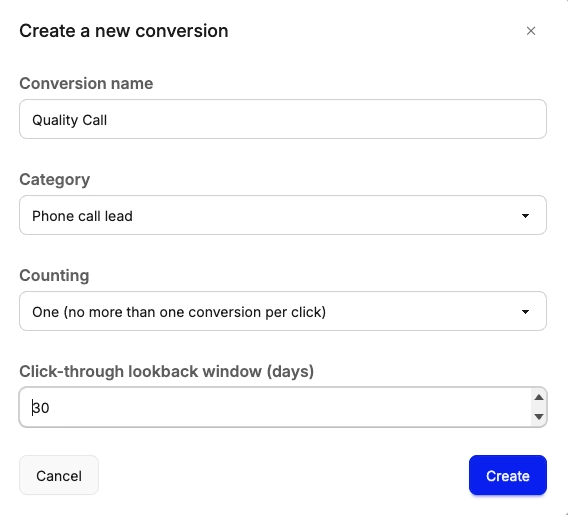
- Open the Google Ads integration in Nimbata.
- Click + Add conversion.
- Select the Google Ads account.
- Choose an existing conversion from the dropdown, or select the option to create one from scratch.
- Give the conversion a descriptive name.
- Add the conversion.
Nimbata then creates the conversion action in the connected Google Ads account. When a call later meets the conditions of your workflow, Nimbata can send it to that conversion action.
Prefer to set up the conversion directly in Google Ads?
You can also create the conversion action the traditional way and then connect it to Nimbata. Here are the steps:
- Sign in to Google Ads.
- Go to Goals → Conversions → Summary.
- Click + New conversion action.
- Select Import > Other data sources or CRMs > Track conversions from clicks.
- Once created, return to Nimbata and select the Google Ads conversion when configuring your call conversion workflow.
How to name your conversions in a way that add value to your reports
Avoid vague names such as:
- Call, Phone, Lead, Conversion 1
Instead, use names that tell you exactly what the conversion represents:
- Qualified Call, Sales Call, Booked Appointment, New Customer, High-Intent Call
This becomes particularly important if you create multiple conversion actions for different call outcomes.
Step 2: Decide which calls should count as conversions
This is the most important part of your call conversion setup.
A phone call is an interaction. A conversion is a valuable outcome.
Those aren’t necessarily the same thing.
For example, a 20-second call from an existing customer shouldn’t necessarily carry the same weight as a five-minute conversation with a new prospect who wants to book your service.
Your first job is therefore to define:
What makes a phone call a valuable lead for my business?
The answer depends on your business, sales process, and what happens during your calls.
A home services company might consider a call a conversion when a customer requests a quote. A law firm might care about whether the caller is a potential client with a relevant case. A healthcare business might define a conversion as a new patient booking an appointment.
Once you define that outcome, you can translate it into conditions that Nimbata can use to classify calls.
What can you use to qualify a call?
There isn’t one universal definition of a qualified call. You can use different pieces of call data depending on what makes sense for your business.
Call duration
Call duration is one of the simplest ways to filter calls.
For example:
Answered call + duration over 60 seconds = Qualified Call
The idea is that extremely short calls are less likely to represent meaningful conversations.
However, duration should not automatically be treated as proof of lead quality. A long call can still be irrelevant, which is why you may want to combine duration with other signals.
Call outcome
If your team knows what happened during or after a call, the call outcome can be a much stronger conversion signal.
For example:
- Qualified
- Unqualified
- Appointment booked
- Sales opportunity
- Sale
- Existing customer
- Spam
You can use these outcomes to determine which calls should be sent to Google Ads as conversions.
Keywords and conversation content
The conversation itself can tell you much more about a lead than call duration alone. Nimbata can surface these moments automatically with keyword and phrase spotting.
For example, a caller saying:
- “I’d like to book an appointment”
- “I need a quote”
- “I’d like to schedule a service”
- “How much does this cost?”
- “I’d like to speak with someone about…”
may indicate buying intent.
In these cases, the content of the conversation can help you identify calls that are more likely to represent genuine opportunities.
Tags and custom properties
You can also use tags or other call properties to classify calls.
For example, your sales team might mark a call as:
Sales Opportunity
That tag can then be used as the condition for a Google Ads conversion.
This is useful when a human needs to evaluate the call and determine whether it was genuinely valuable.
Don’t optimize Google Ads for every call
One of the biggest mistakes in call conversion tracking is assuming that more conversions automatically means better campaign optimization.
It doesn’t.
Suppose Google Ads generates:
100 calls → 100 conversions
That may look like excellent performance.
But if only 20 of those calls are qualified leads, Google Ads is being given a very different signal from:
100 calls → 20 qualified conversions
The second setup gives the advertising system a clearer definition of what you consider valuable.
This is why your conversion strategy should be based on lead quality, not simply call volume.
Create different conversions for different call outcomes
You don’t have to treat every valuable call as the same type of conversion.
If your sales process has different stages, you can create separate conversion actions for different outcomes.
For example:
| Call outcome | Conversion action |
|---|---|
| Answered call | Answered Call |
| Qualified prospect | Qualified Call |
| Appointment booked | Booked Appointment |
| Sales opportunity | Sales Opportunity |
| Customer acquired | New Customer |
This gives you more visibility into the quality of the leads generated by your Google Ads campaigns.
It also allows you to decide which conversion should be used as your main optimization signal.
Primary vs. secondary conversions
Not every conversion needs to be used for optimization. Google Ads lets you mark conversion actions as primary or secondary, so you can report on a conversion without bidding toward it.
For example, you might track:
Answered Call
Useful for understanding overall call volume.
Qualified Call
Useful for measuring lead quality.
Booked Appointment
Useful for measuring a stronger commercial outcome.
You may want to keep all three for reporting while using Qualified Call or Booked Appointment as the primary conversion, depending on your business and the amount of conversion data you generate.
The best conversion to optimize toward is the one that most reliably represents the business outcome you want Google Ads to generate.
Use the conversion that best represents business value as the signal you want Google Ads to optimize toward.
Step 3: Build your conversion workflow and send conversions to Google Ads
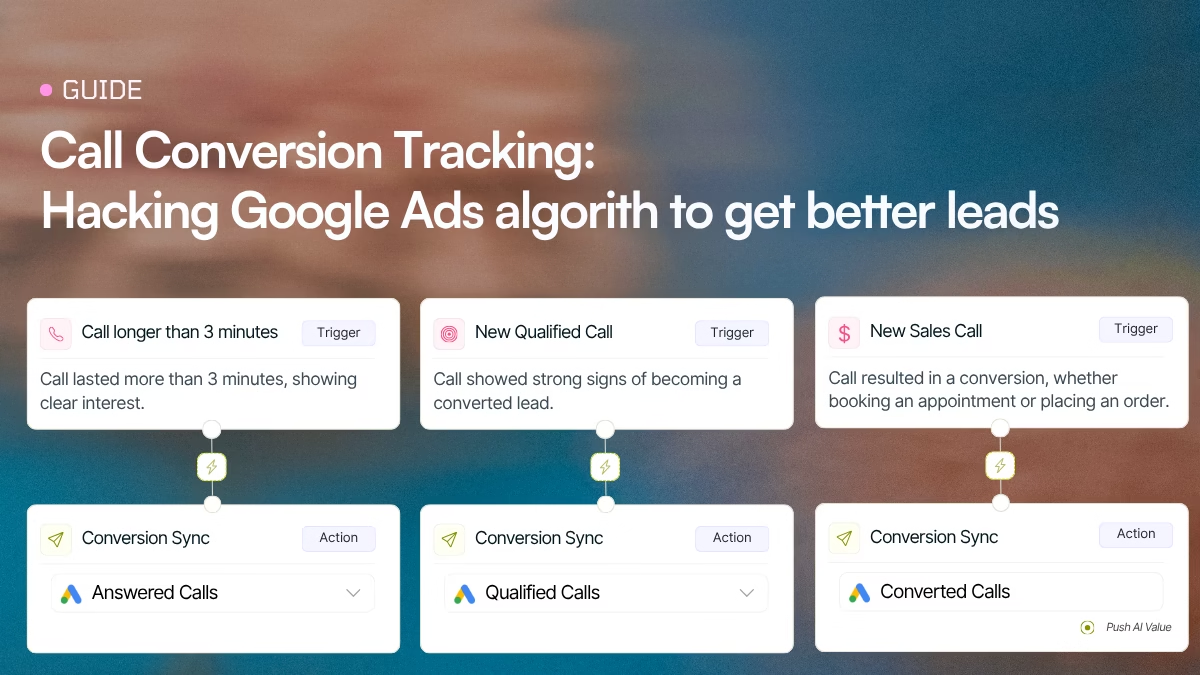
Once you know what should count as a conversion, you can configure Nimbata to automatically send those calls to Google Ads. The Google Ads call conversion workflow template walks through the build step by step.
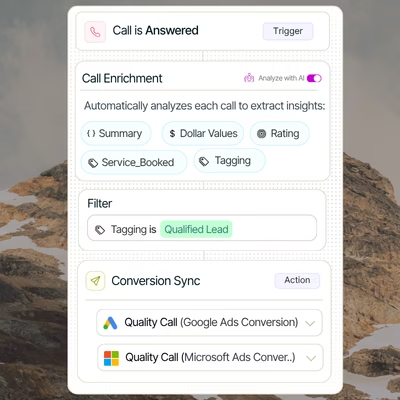
The workflow is simple:
Call happens → Nimbata checks your criteria → call qualifies → conversion is sent to Google Ads
The important part is that your conversion definition and your automation work together. The conversion action tells Google Ads what the conversion represents, while the Nimbata workflow determines when a call should trigger it.
Send conversion values to Google Ads
You can also send a value with your call conversion. A qualified call, a booked appointment, and a new customer can have very different business values. By sending these values back to Google Ads, you give its bidding algorithm a better signal about which calls are actually valuable.
| Conversion | Example value |
|---|---|
| Qualified Call | $50 |
| Booked Appointment | $150 |
| Sales Opportunity | $300 |
| New Customer | $1,000 |
With Nimbata, you can assign and send conversion values to Google Ads in three ways:
1. Let your agents assign the value
Your agents can assign a value to a call based on what happened during the conversation. Nimbata automatically passes that value to Google Ads along with the conversion.
For example:
Agent assigns $200 → Nimbata sends $200 conversion value to Google Ads
This works well when the value of a lead depends on information that only your team can determine after speaking with the caller.
2. Assign values automatically with automation
If the value can be determined by a specific outcome, you can automate it.
For example:
Service booked = Roof replacement → Assign $1,000
Service booked = Inspection → Assign $200
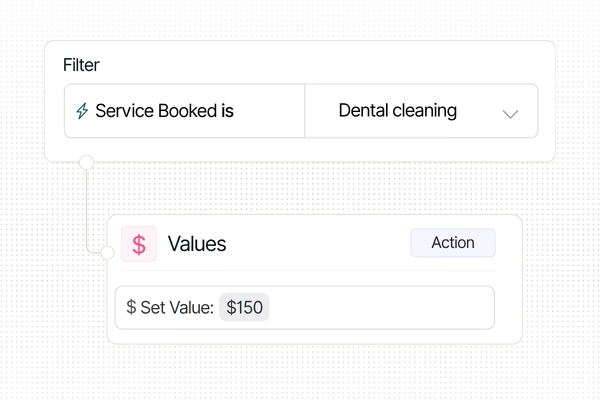
Nimbata applies the value based on your automation rules and automatically sends it to Google Ads.
3. Let AI determine the value
For more complex calls, you can let AI analyze the conversation, determine the appropriate value, and pass it to Google Ads automatically.
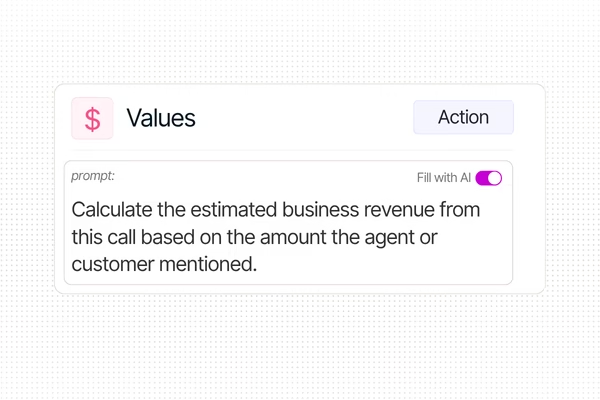
For example, AI can identify the service discussed, lead quality, buying intent, or other signals from the conversation and use them to determine the conversion value.
Call → AI enrichment → Conversion value → Google Ads
This means you can move beyond fixed rules and let the actual content of the conversation influence the value you send back to Google Ads.
These are just examples. Your values should be based on the economics of your business.
Test your conversion setup
Before relying on your conversion data, test the complete setup.
Make sure that:
- Your Google Ads account is connected to Nimbata.
- Your tracking number is working correctly.
- A test call appears in Nimbata.
- The call has the expected Google Ads attribution.
- The call meets your conversion criteria.
- Your Nimbata workflow triggers correctly.
- The conversion is sent to the correct Google Ads conversion action.
- The conversion eventually appears in Google Ads.
If the call appears in Nimbata but doesn’t become a conversion, check the workflow conditions first. If the workflow triggers but the conversion doesn’t appear in Google Ads, check the Google Ads integration and conversion action.
Google Ads call conversion troubleshooting
If your conversions aren’t appearing as expected, start by identifying where the data flow breaks. The conversion not found troubleshooting guide covers the most common causes.
The call appears in Nimbata but has no Google Ads attribution
Check your website tracking and Google Ads attribution setup. Nimbata needs the relevant advertising information to associate the call with Google Ads traffic.
The call has attribution but isn’t a conversion
Check the conditions in your automation.
For example, if your rule requires:
Answered + duration > 60 seconds + specific tag
a call that satisfies only the duration requirement will not trigger the conversion.
The automation fires but Google Ads doesn’t show the conversion
Check that the automation is connected to the correct Google Ads account and conversion action.
Also remember that conversion data may take time to appear in Google Ads after it has been sent. Wait at least 12 hours.
Too many calls are becoming conversions
Your qualification criteria may be too broad.
Instead of:
Every answered call → conversion
consider:
Answered call + minimum duration + relevant outcome → conversion
You can make the criteria more sophisticated as you learn which signals correlate with actual lead quality.
The goal is better conversion data, not more conversions
The most important principle behind Google Ads call conversion tracking is simple:
Don’t optimize for calls if what you actually want is customers.
A phone call is not necessarily a lead, and a lead is not necessarily a customer.
Your conversion setup should reflect the progression from one to the next:
Call → qualified lead → opportunity → customer
Nimbata gives you the call data and automation layer needed to identify where a call sits in that journey and send the appropriate conversion information back to Google Ads.
The better you can distinguish valuable calls from irrelevant ones, the more meaningful your Google Ads conversion data becomes.
FAQ on Call Conversion Tracking
A call conversion is a Google Ads conversion that represents a valuable action generated through a phone call. Instead of treating every call as a conversion, you can define specific criteria that determine which calls should count.
A tracked call is a phone interaction that has been captured and attributed to a marketing source. A call conversion is a tracked call that meets your definition of a valuable business outcome.
For example, you might track 100 calls but send only 30 qualified calls to Google Ads as conversions.
No. If your business receives spam calls, existing customers, short calls, or other irrelevant calls, counting all of them as conversions can make your conversion data less meaningful. Filtering calls based on quality or outcome can provide a stronger optimization signal.
Yes. After connecting your Google Ads account to Nimbata, you can use + Add conversion to select an existing conversion or create a new Google Ads conversion action directly from Nimbata.
Yes. You can create different conversion actions for different call outcomes, such as qualified calls, booked appointments, sales opportunities, and customers. Nimbata supports multiple conversion setups with different triggers and workflows.
Yes. You can configure conversions to include a value and use Nimbata automation to determine when that value should be sent to Google Ads.
Start with the business outcome that most reliably represents a valuable lead. For some businesses this may be a qualified call; for others, it may be a booked appointment or sales opportunity. If you have enough reliable conversion data, use the conversion that best represents the outcome you want Google Ads to optimize toward.
Nimbata connects to your Google Ads account and uses workflows to determine when a call meets your conversion criteria. When the conditions are satisfied, Nimbata sends the conversion to the selected Google Ads conversion action.
A newly created conversion action may show as inactive until Google Ads receives conversion data for it. Once Nimbata starts sending matching conversions, the conversion can become active.
Yes. If you use Nimbata’s conversation intelligence capabilities, call content and AI-generated insights can be used as part of your call qualification logic. This can help identify outcomes and intent that simple rules such as call duration cannot capture.
Bottom line
A proper Google Ads call conversion setup is not simply about connecting a call tracking number to your ads.
It’s about creating a feedback loop between Google Ads, your phone leads, and the actual quality of those leads.
With Nimbata, the process is:
- Connect Nimbata to Google Ads and make sure your calls can be attributed to your advertising traffic.
- Define what makes a call valuable using call data, outcomes, tags, conversation signals, or AI.
- Send qualified conversions and their values back to Google Ads so your reporting and optimization are based on meaningful business outcomes.
You can create the Google Ads conversion action directly from Nimbata, configure the qualification logic in Nimbata, and automate the process from call to conversion without manually exporting and uploading call data.
The result is a much more useful signal than simply counting phone calls: Google Ads can learn from the calls that actually matter to your business.