A marketing campaign can generate hundreds of leads without generating a single profitable customer. The problem is that a form submission or phone call tells you someone responded to your marketing, not whether that person became a valuable customer.
For businesses with longer sales cycles, phone-based sales, or in-person transactions, the most important results often happen after the initial advertising interaction. A prospect might click a Google ad, request a quote, speak with a sales representative, book an appointment, and eventually become a paying customer. If your tracking stops at the initial inquiry, you cannot reliably measure the full value of that journey.
Offline conversion tracking connects advertising interactions to the business outcomes that happen later. These outcomes can include qualified leads, booked appointments, completed purchases, closed deals, and revenue generated through phone calls or other offline interactions.
By connecting this information to advertising platforms, businesses can evaluate campaigns based on the quality and value of the customers they generate, rather than relying exclusively on clicks, form submissions, or other early-stage metrics.
This guide explains how offline conversion tracking works, the available implementation methods, how major advertising platforms handle conversion data, how to track phone-call outcomes, and how to troubleshoot common problems.
What is offline conversion tracking?
Offline conversion tracking is the process of connecting an advertising interaction to a conversion that occurs later in a CRM, sales system, over the phone, or in a physical location.
The term “offline” describes the fact that the outcome is recorded outside the original online conversion event or website session.
For example, someone might click a paid search ad, submit a contact form, and receive a sales call several days later. Your sales team qualifies the prospect, sends a proposal, and closes a €5,000 deal.
Website analytics can record the initial form submission. Offline conversion tracking connects that inquiry to the later qualification and sale, allowing the advertising platform to receive information about the outcome.
Without this connection, ad platforms only have data on the form submission and cannot tell which leads became customers. An unqualified inquiry and a closed deal may be counted as the same type of conversion. Offline conversion tracking adds outcome data to the platform, which makes it possible to see which campaigns, keywords and ads contribute to revenue, measure return on ad spend more accurately, and use bidding strategies that optimize toward qualified leads or sales rather than form submissions. This is especially relevant for businesses with longer sales cycles or a large share of leads that arrive by phone.
What counts as an offline conversion?
An offline conversion can represent any meaningful business outcome that occurs after an advertising interaction and is recorded outside the original online conversion event.
Common examples include:
- Qualified leads: Prospects who meet your sales team’s qualification criteria.
- Booked appointments: Prospects who schedule a consultation, demonstration, or service appointment.
- Completed appointments: Customers who actually attend a scheduled appointment.
- Closed sales: Deals that reach a defined won or completed stage in your CRM.
- In-store purchases: Transactions associated with advertising activity and recorded at a physical location.
- Qualified phone calls: Calls that meet criteria such as relevant intent, service eligibility, or a genuine sales opportunity.
- Call-generated revenue: Revenue from customers whose journey began with an attributable phone call.
- Contract signings: High-value milestones in longer B2B sales cycles.
Not every event should automatically count as a conversion. A missed call, an unqualified inquiry, and a completed sale have different business implications.
Choose conversion events according to your business model and what you want to measure or optimize.
Offline conversion tracking vs online conversion tracking
Online conversion tracking typically measures actions recorded on a website or digital property, such as purchases, form submissions, registrations, or requests for a quote.
Offline conversion tracking measures subsequent outcomes, such as lead qualification, completed sales calls, signed contracts, or purchases recorded in a CRM or point-of-sale system.
| Factor | Online conversion tracking | Offline conversion tracking |
|---|---|---|
| Typical events | Form submissions, online purchases, sign-ups | Qualified leads, booked appointments, closed deals |
| Main data source | Website tags, analytics, ecommerce systems | CRM, sales system, call tracking, point-of-sale data |
| Timing | Often occurs during or shortly after a website interaction | May happen hours, days, or months later |
| Primary purpose | Measure digital actions | Connect advertising to downstream outcomes |
| Main challenge | Accurate event measurement and attribution | Connecting the original interaction to later records |
These methods complement each other. Most businesses benefit from measuring initial website actions and meaningful downstream outcomes rather than choosing one or the other.
How does offline conversion tracking work?
An effective implementation connects the initial advertising interaction to a lead record, follows that lead through the sales process, and sends selected conversion outcomes back to the advertising platform.
The following workflow illustrates the process.
Ad click → Click ID and first-party data captured → Lead stored in CRM → Lead qualified or sale closed → Conversion sent to ad platform → Campaigns evaluated and bidding optimized
Step 1: Capture the advertising interaction
When someone clicks an advertisement, the advertising platform may provide a click identifier or other information that helps associate the visitor with that interaction.
Advertisement interactions may be:
- GCLID: Google Click Identifier, used in supported Google Ads measurement workflows.
- MSCLKID: Microsoft Click ID, used in Microsoft Advertising measurement workflows.
- First-party customer data: Information such as an email address or phone number, collected and handled under the applicable platform requirements and privacy obligations.
- Campaign and session information: Additional context that helps your systems understand where an inquiry originated.
For example, a visitor arrives on your website after clicking a Google search ad. Your tracking implementation captures the available GCLID and associates it with the visitor’s subsequent form submission.
The important part is not simply collecting the identifier. It must remain associated with the correct lead as that person moves through your sales process.
Identifiers can be lost when redirects, forms, consent settings, browser restrictions, or CRM integrations are configured incorrectly.
Step 2: Store the lead in your CRM
When a visitor submits a form, calls your business, or otherwise becomes a lead, the system should create or update a lead record.
Where available and permitted, that record should retain the advertising identifiers and other information required for your chosen conversion-matching method.
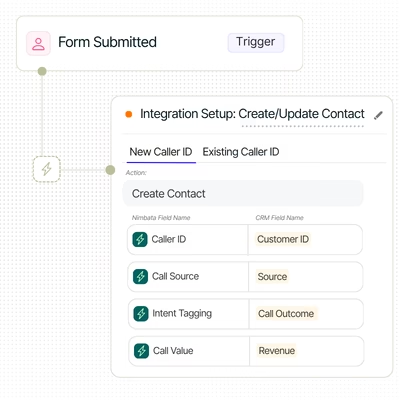
A CRM is a common solution, but it is not the only option. A spreadsheet or another structured system can support a small implementation if it records lead identities, outcomes, timestamps, and the identifiers needed for the selected integration.
The critical requirement is maintaining a reliable connection between the original advertising interaction and the eventual business outcome.
Step 3: Track what happens to the lead
The CRM or sales system records how the lead progresses.
For example:
- New inquiry received.
- Sales representative contacts the prospect.
- Lead qualifies against the company’s criteria.
- Appointment or demonstration is booked.
- Proposal is sent.
- Deal is won or lost.
- Final revenue is recorded.
Each stage may represent a useful measurement point, but not every stage should necessarily become a conversion action used for bidding.
A company that needs more sales opportunities might optimize for qualified leads. A business with sufficient conversion volume and reliable sales data might optimize for closed deals or conversion value.
The choice should reflect the business objective and the quality, volume, and timing of the available data.
Step 4: Send conversion data back to the advertising platform
When a meaningful outcome occurs, the system transfers the relevant conversion event to the advertising platform through a supported import, connector, data integration, or API workflow.
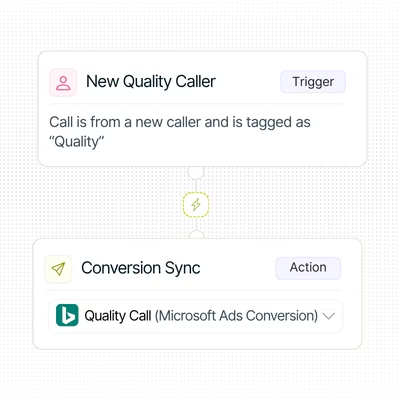
Depending on the platform and method, the data can include a click identifier, eligible customer matching data, conversion name, timestamp, value and other required fields.
The platform then processes the event and attempts to associate it with eligible advertising interactions.
A successful data transfer does not guarantee that every conversion will be attributed to an ad. Matching eligibility, attribution rules, consent, data quality, and platform restrictions all affect the result.
For Google Ads, consult the current offline conversion import guidelines and the documentation for Enhanced Conversions for Leads.
Step 5: Measure results and optimize campaigns
Once conversion data is processed, advertisers can compare campaign performance using more meaningful outcomes.
For example, Campaign A might generate 100 inquiries at €20 each, while Campaign B generates 50 inquiries at €35 each. If Campaign A produces only five qualified leads and Campaign B produces 25, the cheaper lead source may not be the better investment.
Returning accurate downstream events allows advertisers to evaluate performance using qualified leads, sales, and revenue rather than relying exclusively on raw lead volume.
Where supported and configured appropriately, these signals can also inform automated bidding.
Offline conversion tracking vs Enhanced Conversions for leads
Offline conversion tracking is the broader practice of connecting advertising interactions with outcomes recorded later. Enhanced Conversions for Leads is a Google Ads approach that supplements offline conversion measurement with eligible first-party customer data.
The distinction matters because the two terms describe different levels of the measurement process.
What is traditional offline conversion tracking?
In a traditional click-ID-based workflow, an advertiser captures a Google Click Identifier (GCLID) when someone clicks an ad and stores it alongside the lead record.
When the lead becomes qualified or converts into a customer, the advertiser sends the event to Google Ads using a supported import workflow.
The GCLID helps Google associate the outcome with the original ad interaction.
This approach requires the identifier to be captured correctly, preserved with the appropriate lead, and submitted within the applicable time limits.
What are Enhanced Conversions for leads?
Enhanced Conversions for leads supplements offline conversion measurement with eligible first-party customer data, such as an email address or phone number.
In supported workflows, customer data is normalized and hashed as required before transmission. Google uses the supplied matching information to help associate conversion events with eligible advertising interactions.
The method can improve measurement resilience and support additional attribution opportunities, including certain cross-device and engaged-view conversions where eligible.
Google now recommends Enhanced Conversions for Leads for advertisers starting offline conversion imports. Its configuration has also evolved: since 2026, Google has been unifying Enhanced Conversions for Web and Leads settings and moving legacy offline upload workflows toward Data Manager.
For a step-by-step walkthrough of setting up Enhanced Conversions for leads, GCLID uploads and Data Manager imports, see our guide on how to track Google Ads offline conversions.
What is the difference between the two?
| Factor | Traditional click-ID-based imports | Enhanced Conversions for Leads |
|---|---|---|
| Main purpose | Report downstream conversion outcomes | Report downstream outcomes with additional customer-data matching |
| Matching | Uses click identifiers such as GCLID in supported workflows | Uses eligible first-party customer data, supplemented by available identifiers |
| Data requirements | Conversion details and the identifiers required by the chosen method | Conversion details and eligible customer data; GCLID remains valuable where available |
| Implementation | Supported import, integration, or API workflow | Supported Enhanced Conversions setup and data-transfer workflow |
| Main consideration | Identifier capture, retention, and upload accuracy | Matching eligibility, data normalization, integration setup, and privacy requirements |
Can you use both approaches?
Traditional click identifiers and Enhanced Conversions for Leads can be part of the same measurement strategy. The objective is to improve matching while reporting each business outcome correctly.
However, overlapping integrations can create duplicate events or conflicting conversion definitions if they are not configured carefully.
Before combining methods:
- Confirm which conversion action receives each event.
- Preserve click identifiers when available.
- Follow the current data requirements for the selected workflow.
- Define how duplicate events are identified and handled.
- Validate reporting before changing which conversion actions are used for bidding.
Important 2026 implementation update: Google Ads has been moving offline conversion imports and Enhanced Conversions for Leads uploads toward Data Manager. Google announced that legacy upload workflows would migrate to the Data Manager API from June 15, 2026, with restrictions on legacy Google Ads API upload access. The supported method depends on the integration and current account configuration, so developers should check Google’s latest migration documentation before implementing or maintaining an API-based import. See Updates to Enhanced Conversions settings.
Offline conversion tracking across advertising platforms
The core principle is consistent across platforms: capture the original interaction, maintain a connection to the lead or customer, record the meaningful outcome, and send eligible data through a supported measurement workflow.
However, click identifiers, event schemas, matching methods, and implementation requirements differ.
Google Ads offline conversion tracking
Google Ads supports downstream conversion measurement through click-ID-based workflows and Enhanced Conversions for Leads.
The GCLID can connect an ad click to a later CRM outcome. Enhanced Conversions for Leads supplements this approach with eligible first-party customer data and can improve matching in supported setups.
For new implementations, Google’s current documentation recommends considering Enhanced Conversions for Leads rather than starting with legacy offline conversion imports.
Key implementation considerations include:
- Enable the appropriate conversion tracking and auto-tagging settings.
- Capture and preserve available GCLIDs.
- Collect eligible first-party data where appropriate.
- Define conversion actions that represent meaningful business outcomes.
- Configure a supported data source or integration.
- Validate uploads and conversion diagnostics.
- Check upload timing requirements and the current API or Data Manager workflow.
Google’s documented upload windows include a 90-day limit for certain click-based imports and a 63-day limit for Enhanced Conversions for Leads data, measured from the associated last click. The applicable requirements depend on the method, so verify them before implementation.
For technical details, see Set up offline conversions using GCLID and the Google Ads import guidelines.
Microsoft Advertising offline conversion tracking
Microsoft Advertising supports offline conversion imports that associate a later business outcome with a Microsoft ad click using MSCLKID.
For supported conversion goals, an advertiser can capture the click identifier, retain it with the lead, and submit the conversion through the relevant import workflow.
Microsoft also documents server-side conversion measurement through its UET Conversion API, which supports event delivery and user matching through specified identifiers and data fields.
Implementation considerations include:
- Enable the relevant click-ID tracking settings.
- Capture and store MSCLKID when available.
- Map CRM outcomes to the correct conversion goals.
- Include the required event details and identifiers.
- Follow the selected API’s data schema and consent requirements.
- Validate conversion uploads and matching.
Microsoft’s documentation suggests retaining the most recent MSCLKID for an appropriate period, with 90 days given as a suggested retention period for the documented UET Conversion API workflow. That recommendation should not be interpreted as a universal retention or attribution rule for every Microsoft conversion method.
See Microsoft’s documentation for applying offline conversions and the UET Conversion API.
Meta Ads offline conversion tracking
For Meta advertising, businesses can connect eligible website, CRM, and sales events to advertising measurement through supported datasets, the Conversions API, and appropriate integrations.
For example, a business might capture a lead from a Meta campaign, record the lead’s qualification status in its CRM, and send a supported downstream event through an integration.
This can help Meta match eligible events with advertising activity and provide a more complete view of campaign outcomes.
Implementation considerations include:
- Identify the appropriate dataset and event setup.
- Decide which website and CRM events should be sent.
- Map internal lead stages to the relevant supported events.
- Use supported matching fields and event identifiers.
- Implement deduplication when the same event is sent through multiple routes.
- Respect consent requirements and Meta’s customer-data policies.
- Validate event receipt, matching quality, and reporting.
Avoid treating legacy terminology or retired offline-event setup instructions as current implementation guidance. Confirm the current requirements for your account, dataset, Conversions API integration, and CRM connection in Meta’s official documentation.
How to choose the right platform-specific approach
The right implementation method depends on the advertising platform and on the data that can be collected reliably. Several factors are worth evaluating before committing to a workflow.
Identifiers and data sources come first. Each platform supports specific click IDs or matching data, such as email addresses or phone numbers, and these need to be captured at the point of conversion and stored with the lead. The CRM, call tracking system, or sales platform also needs to expose the required fields so they can be sent back to the ad platform.
Integration options and timing also shape the setup. Some platforms and CRMs offer native connectors, while others require a custom integration, which affects setup effort and ongoing maintenance. Each platform also limits how long after the ad interaction a conversion can be imported, so the sales cycle and upload frequency need to fit within those windows.
Data quality and compliance matter just as much. Conversion names, values, timestamps, and lead stages should follow a consistent structure across systems. Data collection and transfer must also comply with applicable privacy laws, consent requirements, and platform policies.
The workflow should also include a way to detect failed uploads, duplicate records, and missing conversions, so problems are caught before they affect reporting or bidding.
In most cases, a simple implementation that consistently reports valid outcomes is more useful than a complex integration that sends incomplete or unreliable data.
How to track offline conversions from your CRM
A CRM is often the central system for connecting advertising leads to sales outcomes because it records how prospects progress through the sales funnel.
The challenge is translating that information into conversion events that advertising platforms can understand.
Map CRM stages to conversion actions
Start by documenting your actual sales process. A typical funnel might include:
| CRM stage | Potential conversion event | Measurement purpose |
|---|---|---|
| New lead | Lead created | Measure initial lead generation |
| Qualified lead | Qualified lead | Measure lead quality |
| Appointment booked | Appointment booked | Measure sales intent |
| Appointment completed | Appointment attended | Measure follow-through |
| Deal won | Closed sale | Measure customer acquisition |
| Revenue recorded | Sale value or revenue event | Measure economic value |
Choose the right conversion event
Not every CRM status change should become an advertising conversion. Choose events that represent meaningful progress and define objective criteria for each one.
If you track both qualified leads and closed sales, ensure that the events are intentionally configured and that you understand how they appear in conversion reporting and bidding.
Automating Nimbata to send GCLIDs to Google Ads
Setting up your Nimbata account is super easy and can be done by following this thorough guide.
By placing the Nimbata DNI script on your website Nimbata will capture the GCLIDs and assign them to calls like this:

Since you don’t want to have to upload these manually each time, you can automate this process from within Nimbata.
First Navigate to Integrations from the menu on the left and click on Google Ads

Click on the button Sign in with Google and select the account which has access to Google Ads
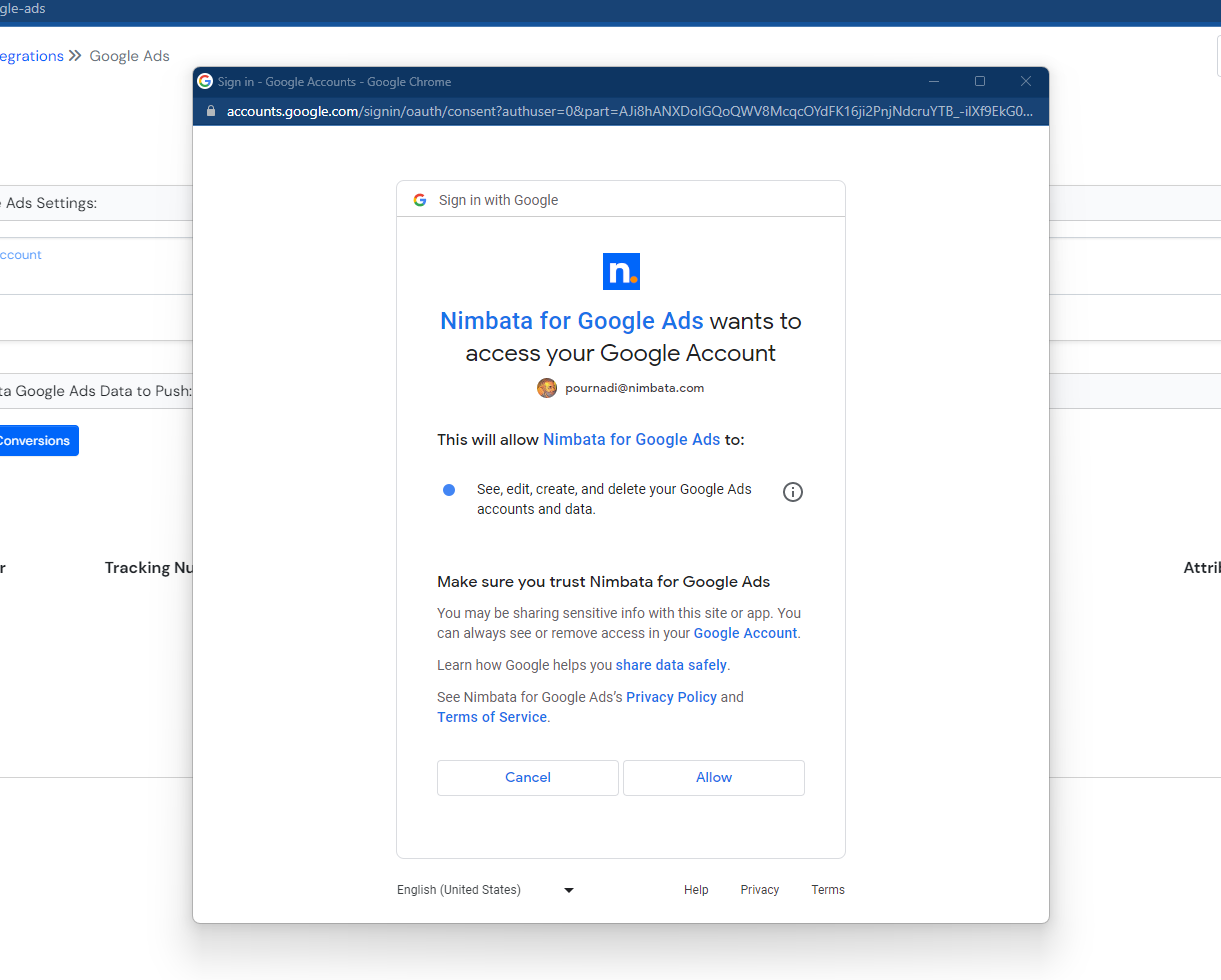
Click on Allow to give Nimbata permission to send the GCLIDs to your offline conversion
Select the trigger, the ad account and in the list of conversions find the offline conversion you created in the previous steps.
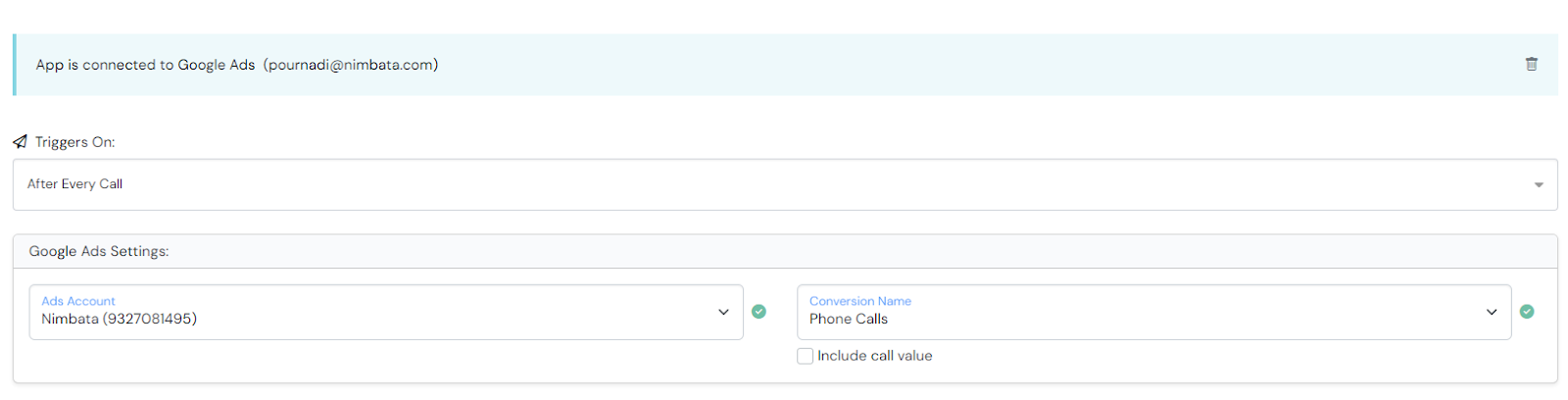
That’s it! Nimbata will send GCLIDs to your offline conversion in Google Ads once per day.
Tracking phone call conversions in Facebook

Looking for the full guide? Read more on how to track offline conversions in Facebook.
How it works
Facebook offline conversions lets businesses leverage their offline events data – such as in-store purchases, over-the-phone bookings and qualified leads – to help power their digital campaigns.
By uploading customer information, such as names, email addresses, and phone numbers from your company’s CRM, or your call tracking platform to Facebook, you can track conversions offline. Facebook then matches this information with the data of users who engaged with your ads, and if a match is found, Facebook attributes the sale to your ad. This tool enables advertisers to assess the effectiveness of their marketing efforts.
There are 2 methods which you can use either as standalone or even better together!
Method 1: Automate Nimbata to send offline conversions by passing the FBCLID in event manager
Method 2: Manually uploading phone calls with Facebook’s event manger.
We will show how to perform both in the following sections.
Armed with this information, you can improve your ads to increase conversions and see how many offline sales are generated by your Facebook ads.
Why it matters!
The Apple iOS 14.8.1 privacy update has made it compulsory for apps to request users’ permission before tracking their activity on other companies’ websites and apps for ad delivery and data sharing with brokers. Facebook advertisers were negatively impacted by the update, as it limited their ability to track conversions, display targeted ads, and create lookalike and custom audiences.
However, businesses and advertisers can benefit from offline conversions in the post-iOS 14.8 era. Setting up offline conversions enables them to:
View performance breakdowns again: By demographic, location, platform, device, etc.
Moreover, setting up offline conversions alongside other tracking tools like Nimbata enables advertisers to capture all cross-channel conversions and attribute them correctly to their Facebook ads and ad sets.
What you need to setup offline conversions
1. Offline event datasets and an active Nimbata – Facebook integration
You’ll need to upload information about people’s offline actions to Facebook. You can connect your data to your campaigns in two ways: by using Facebook’s native offline event manager or/and integrating your Nimbata account with Facebook.
2. A Facebook ad account
You will need to have an active Facebook ad account.
3. A Facebook Business Manager account
Business Manager lets businesses share and control access to their ad accounts, Pages and other assets on Facebook. You’ll need an account to create offline event sets.
Method 1: Automate Nimbata to send offline conversions
First, ensure that you have admin access to a Facebook Business Manager and a Facebook ad account.
Now let’s see step by step how you integrate Nimbata with Facebook Ads Manager:
- Head to Integrations – Facebook in your Nimbata account

- Click on the Button labeled “Login with Facebook”.

- Click on the “Continue” button.

- Click on the Continue button to grant Nimbata access to your Facebook ads.

- A confirmation message will inform you that your account has been successfully connected.

- To share your Facebook Pixel ID with Nimbata, click on the hyperlink or visit “Facebook Business Manager -> Business Settings -> Data Sources -> Pixels -> Partners”.
- Navigate to “Assign Partners”.
- Enter the Business Partner ID
, enable the switch “Manage Pixel” and click on “Next”.
- In the Facebook Partners’ tab, you will see a pending request, sent to Nimbata.
- Once the partnership request is accepted, you will receive a Facebook notification.

- Now, Nimbata is listed as a partner for this specific Pixel ID.
- Next, go back to the app and select from the drop-down menu the Pixel you shared with Nimbata.

That’s it! Nimbata will send offline conversions as events in Facebook for each call you receive!
Method 2: Manually upload offline conversions with event manager
Go to Events Manager and click on the Green +Connect Data Sources button

Then, you are presented with the “Connect Data Sources” window. Select “Offline” and click “Continue”.

Create an offline event set
Add a “Name” and “Description” for your offline event set. Click “Create”.

Connect your ad account
Configure the “Assign ad accounts and set tracking” section. Turn on auto-tracking to streamline the process.

Configure user access and permissions
Here, you can select who can access your offline event set, configure the connected accounts, event management, and much more. Once completed, click “Assign”.

That’s it! Your offline event has been configured!

Upload offline event data using a CSV data file
You can now upload offline event data from your phone calls. Create a CSV data file with the phone calls you wish to be uploaded. This file should contain as much information as possible to ensure accurate reporting:
- Timestamps (accurate to the minute)
- Customer details (e.g., customer’s first and last name, email address, phone number)
- Location (e.g., country, city, state/province, zip code)
- Event name (e.g., booking, purchase, lead, other, etc…)
- Transaction value and currency
You can fetch these data from your CRM as Nimbata integrates with any CRM and sends call information, enriching the details you have for each customer.
Note that Facebook recommends uploading offline event data within 48 hours after event occurrence for optimal reporting.
Next click on upload events.

Click on Select CSV file and upload your CSV.
Then click on Next: Map Data
Facebook will review the data you are trying to upload and inform you for any errors that might need fixing.
After fixing the errors, click on Next: Review
You’ll then see how many rows are ready to be uploaded, your estimated match rate, and any additional warnings.

Click on Next: Review

When ready click on Start Upload
Please note that it takes about 15 minutes for Facebook to populate the data. After that, you will see the leads that are attributed to your Facebook ads.
Go to Ads Manager. Find the Offline Conversions column under Campaigns. There, you will be able to see your data.
Tracking phone call conversions in Microsoft Ads

Looking for the full guide? Read more about how to track offline conversions in Microsoft Ads.
Using Microsoft Ads is an effective way to reach a specific audience and advertise your product or service. It is commonly considered a more affordable option compared to Google Ads and is highly recommended for those seeking to increase traffic and conversions through paid advertising.
Although more marketers are utilizing Microsoft Ads, it remains difficult for many to connect paid sessions with broader customer journeys. However, by incorporating Nimbata with your Microsoft Ads account, you can bridge this gap and enhance your advertising efforts.
Let’s see how you can get Nimbata to automate sending of MSCLKIDs to Microsoft Ads!
How it works
Step 1: User clicks on one of your Microsoft Ads
Step 2: Microsoft Ads will append the MSCLKID to the URL of the landing page

Step 3: The Nimbata script that runs on your website captures the MSCLKID and the whole customer journey until the customer calls
Step 4: When the call ends, Nimbata assigns the call to the visit that drove it and sends the click ID back to Microsoft Ads as an offline conversion.
Setting up an offline conversion in Microsoft Ads
In Microsoft Ads navigate to: Conversion Tracking -> Conversion Goals and click on “Create Conversion Goal”

Give your conversion goal a name and select type=Offline conversions. Click Next.

Select the scope, value, count, conversion window that suits you best and check the box “Include in Conversions”.

Automating Nimbata to send MSCLKIDs to Microsoft Ads
First Navigate to Integrations from the menu on the left and click on Microsoft Ads

Click on the Button labeled “Connect Microsoft Ads”
A pop up window will appear were you can select the Microsoft Account you wish to connect. Make sure that the account you connect is the one you previously setup the conversion action, as described above.
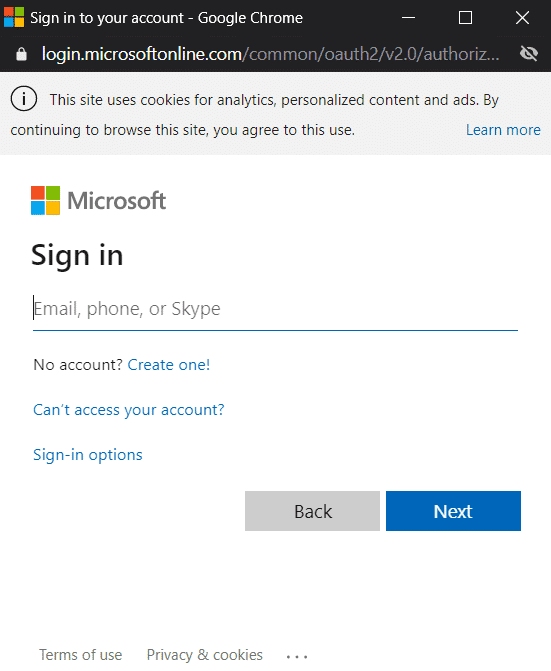
Click on Yes to give permission to Nimbata to send call data to your Microsoft Account.

After completing the process, you will return back to Nimbata and see a confirmation message that your account has been successfully connected.

Select the trigger, the ad account and in the list of conversions find the offline conversion you created in the previous steps.
That’s it! Nimbata will send MSCLKIDs to your offline conversion in Micorosft Ads.
How to setup offline conversion tracking with Nimbata (Video tutorial)
Conclusion
Let’s face it.
Monitoring your website traffic, engagement, and purchases isn’t enough.
You’ve mastered Google Ads, Facebook Ads and Microsoft ads but you can train the algorithm to do even better!
And get the credit you deserve for all those warm leads you bring to your clients!
This is why offline conversion tracking is a must for every digital marketer in 2025.
With such rich data in hand, you can continuously improve your bidding strategy and prove why raising your budget is a solid idea!
Not comfortable setting this up yourself? Connect with one of our experts and we will point you towards the right way!