INTEGRATIONS / Slack

Slack

Instantly notify your team with every call lead and insight – exactly where collaboration happens.

Why Slack + Nimbata?

Automatically push call alerts to the right Slack channels, with full control over what data you share, when it fires, and how it scales across every project.
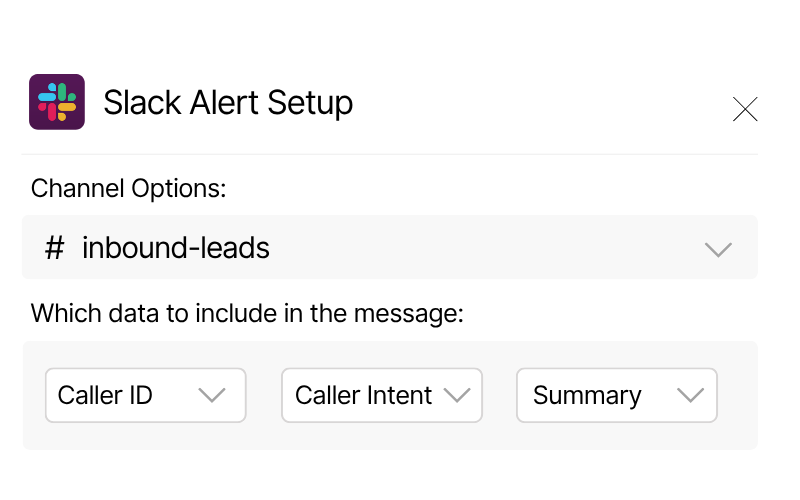
Precision message formatting

Tailor each Slack alert to show exactly the data you need, from caller details to AI insights. Full control over content, structure, and delivery.

Conditional sync logic

Control exactly when to fire the integration based on caller type, duration, tags, or AI classification.
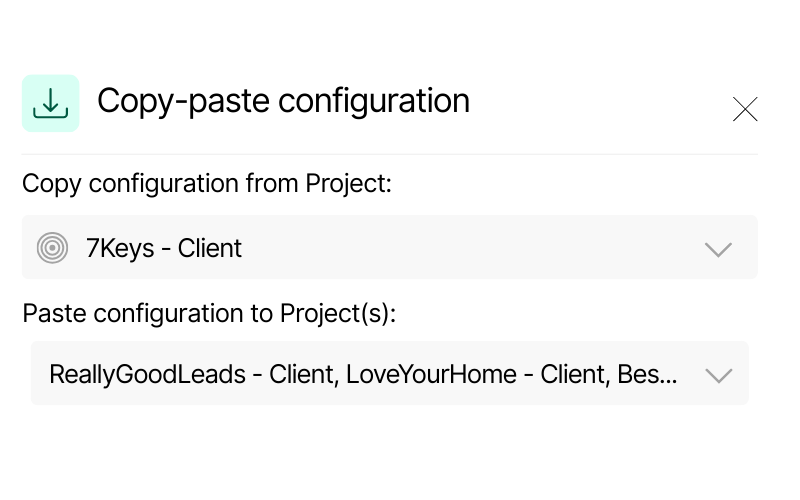
Screenshot of Nimbata’s copy-paste configuration feature. It displays a source project “7Keys – Client” and options to paste configuration into multiple Dynamics projects, including “ReallyGoodLeads – Client” and “LoveYourHome – Client.”
Scalable configuration

Duplicate Slack sync settings across multiple projects in seconds — no manual setup needed.

Call Tracking for Slack integration capabilities

(that keep you on track without leaving the app)

Real-time call alerts that drive faster action

Automatically route call notifications to specific Slack channels based on value, intent, or tags, so all your different teams only get the calls that matter to them.

Act faster on revenue opportunities and drive better outcomes

See Marketing Performance at a Glance

Add marketing attribution data right into your Slack call alerts.

Know which campaign, channel, or keyword drove the call — without leaving Slack.
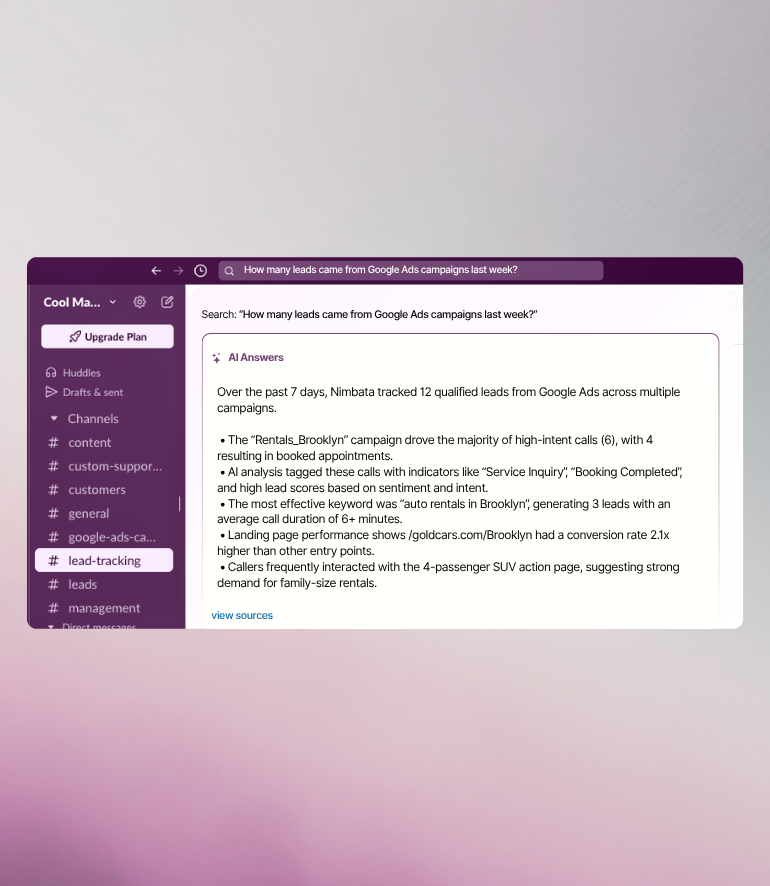
Align your team with AI‑powered insights

Nimbata’s AI automatically tags, scores and assigns dollar values to calls based on conversation content.

Deliver those insights right into Slack so your team sees what drives success, day after day.

Keep your Slack channels synced in no time – seriously!

Slack meets real-time call intelligence

HOW IT WORKS
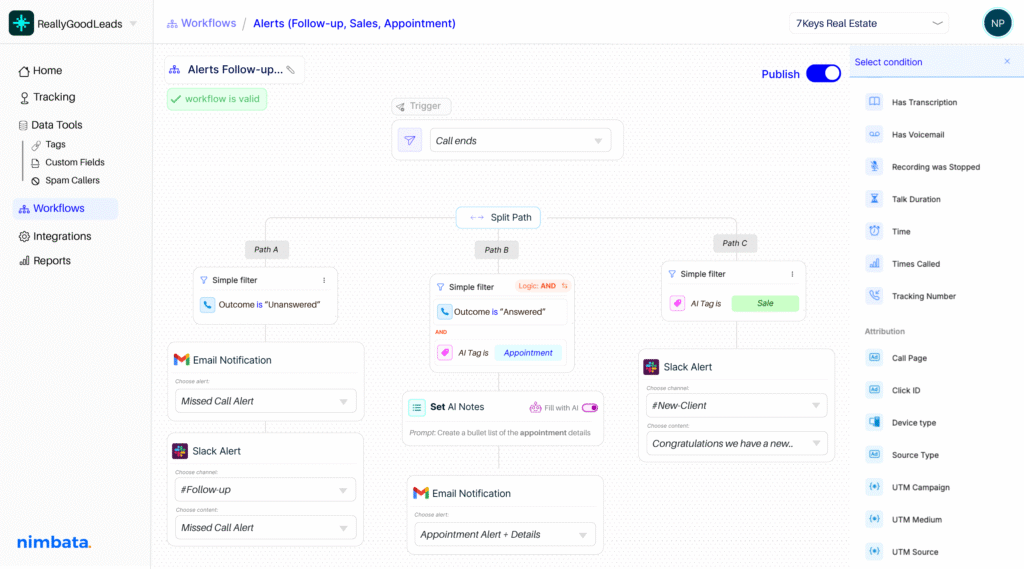
Include CRM automation on your workflow builder-split paths and sync your apps effortlessly

Push only the right calls to your Slack channels

Smart workflow filters determine exactly which calls get sent based on 30+ real-time conditions from source, duration, and caller type to AI-detected outcomes.

Every call becomes a live Slack alert

Let AI summarize the conversation, take notes, detect buying intent, and automatically assign lead value and tags — so your team can instantly see what happened, what it's worth, and what to do next.

Send the right call alert to the right Slack channel, every time

Define exactly what Nimbata will send to Slack after a call – from high-intent leads for Sales, to missed calls for Support. Fully customizable to match your team structure and channel workflows.

Nimbata + Slack Integration FAQs

What call data can I send to Slack?

You can send caller ID, call duration, call recordings, source data (e.g. UTM, keyword, landing page), and AI-generated fields like Call Rating, Intent Tags, and Caller Outcome, as well as any custom fields.

Can I filter which calls get sent to Slack?

Absolutely. Use Integration Triggers to send notifications only when specific criteria are met, such as high-value leads, specific tags, call duration, or intent, so only the calls that matter land in Slack.

Why should I use Nimbata to achieve call tracking for Slack?

Because it lets you:

✔ Get real-time call alerts in Slack
✔ Share enriched call data with your team
✔ Customize which details to show in alerts
✔ Filter calls using smart AI triggers
✔ Align teams and speed up follow-ups

Can I send sensitive calls to private channels?

You can route alerts to either public or private channels—ideal for privacy or security needs. Just select the appropriate destination when setting up your Slack configuration.

Do I need Zapier or other tools to use Nimbata + Slack?

Nope, this integration is native! Zapier or other platforms offer more automation options, but basic Slack alerts happen directly within Nimbata.

How do I enable call tracking in Slack from Nimbata?

Go to Integrations → Slack in your Nimbata account, click Add to Slack, authorize the app, choose your Slack channel, select which call fields to include, run a test notification, then save.

Where can I get help with setting up Slack or other integrations?

Our help center is armed with every information you will need, and in case you need some extra help feel free to talk to one of our specialists. Always a pleasure meeting you!

Are there plan restrictions for using Slack integration?

The Slack integration is included in the Marketing and Agency plans. If it’s not visible in your account, that’s likely the reason. You can reach out to upgrade or check your plan settings.

How do call recording links work in Slack alerts?

You can include a recording link in your alert template, allowing your team to play calls directly from Slack—and respond with context to follow-ups or training needs.

Discover more integrations